Library
Audio, backgrounds, images, text, karaoke, visualizers, motion, effects and filters.

You do not need to learn the entire editor before you begin. Follow this short route once, then return only to the section you need.
Choose a tool on the left, work on the canvas, adjust the selected layer on the right and control its timing below.
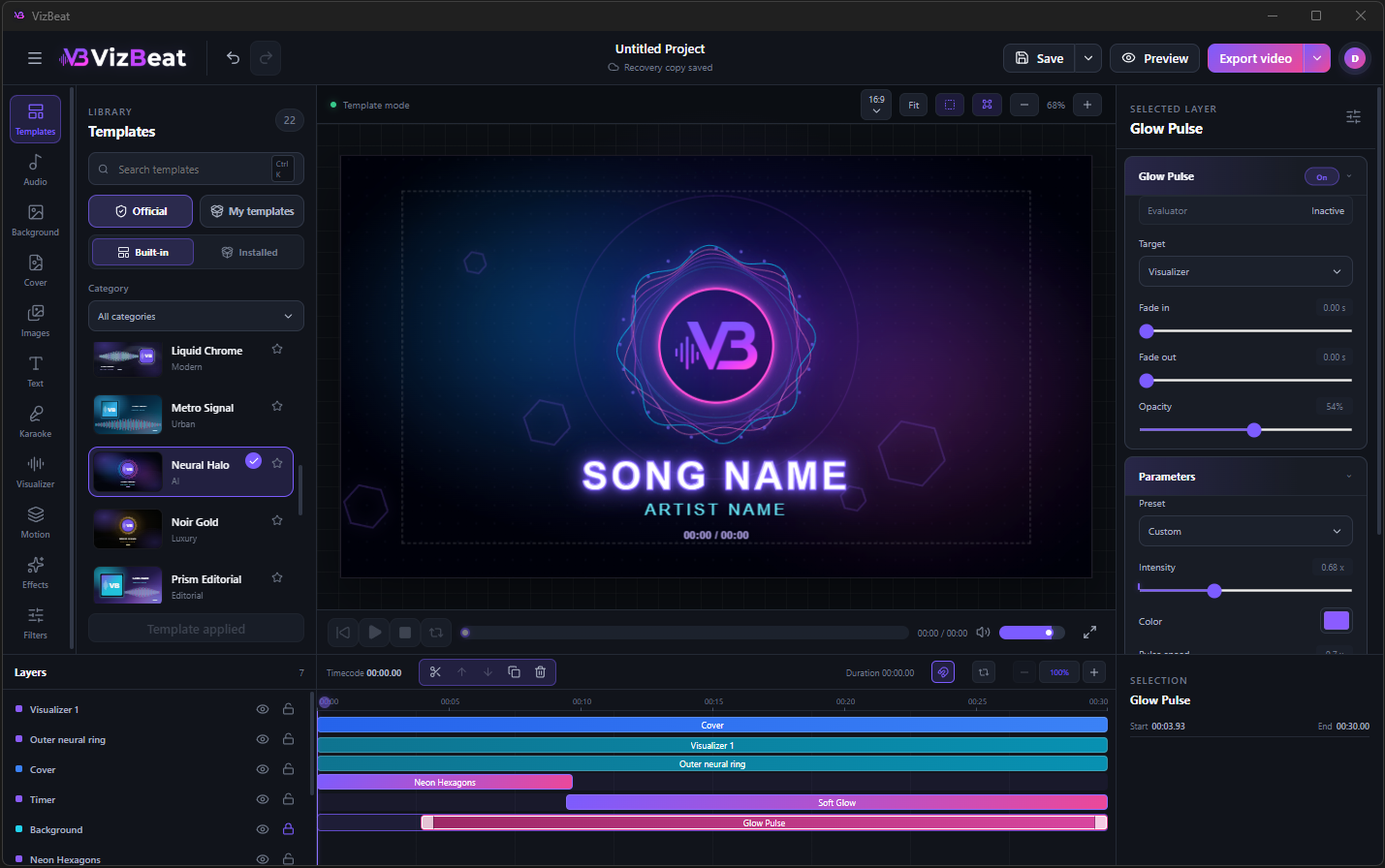
Audio, backgrounds, images, text, karaoke, visualizers, motion, effects and filters.
Move, scale and preview every visible element of the composition.
Fine-tune the selected layer without affecting unrelated elements.
Set when a layer appears, trim clips and align moments with the music.
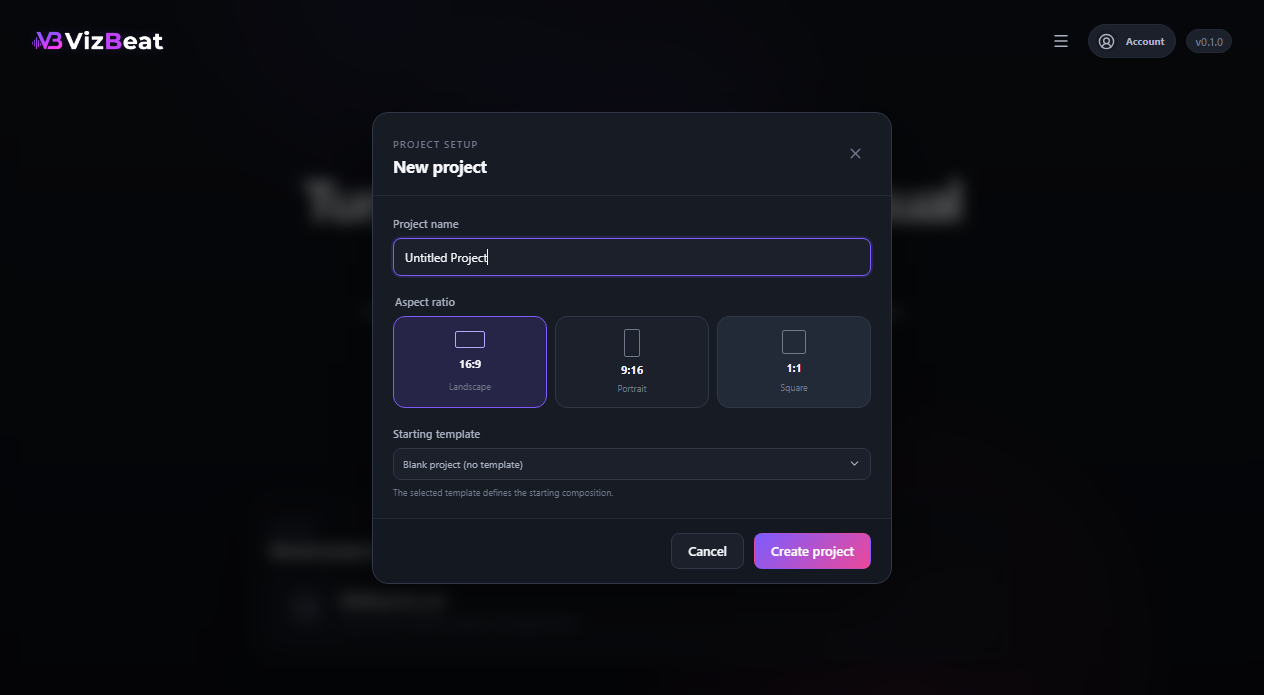
Choose New project for a clean canvas or start from a template. Set 16:9, 9:16 or 1:1 before arranging the scene.
Open Audio and add an MP3 or WAV. The waveform appears on the timeline and the source file stays on your computer.
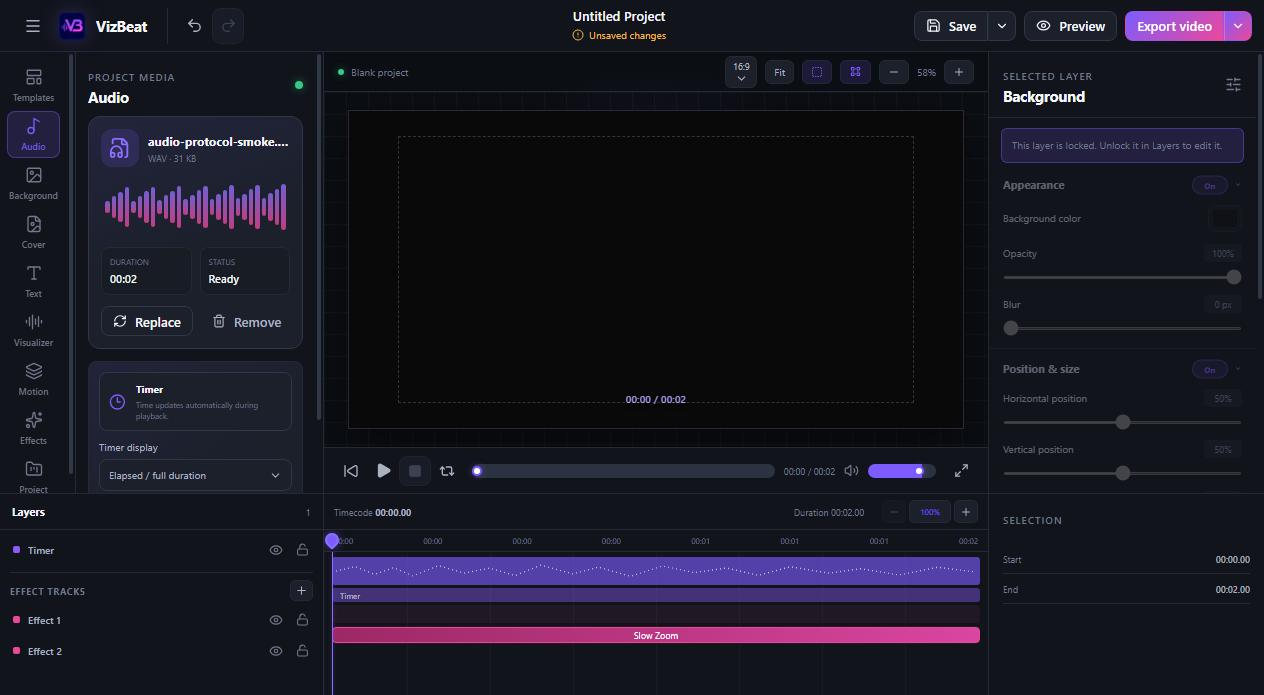
Add a background, cover or image. Select an element on the canvas to move it, then use the right panel for exact size and appearance.
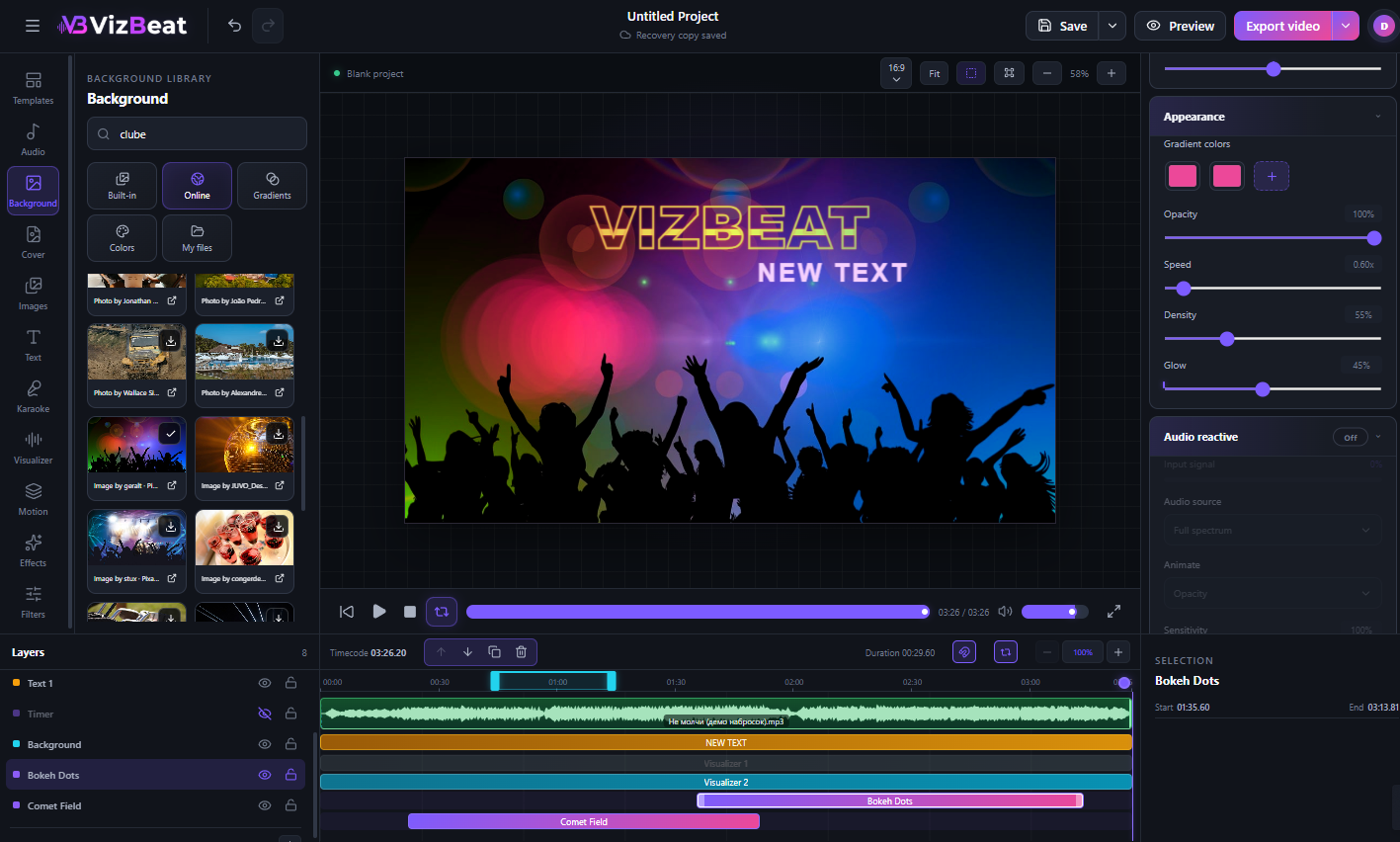
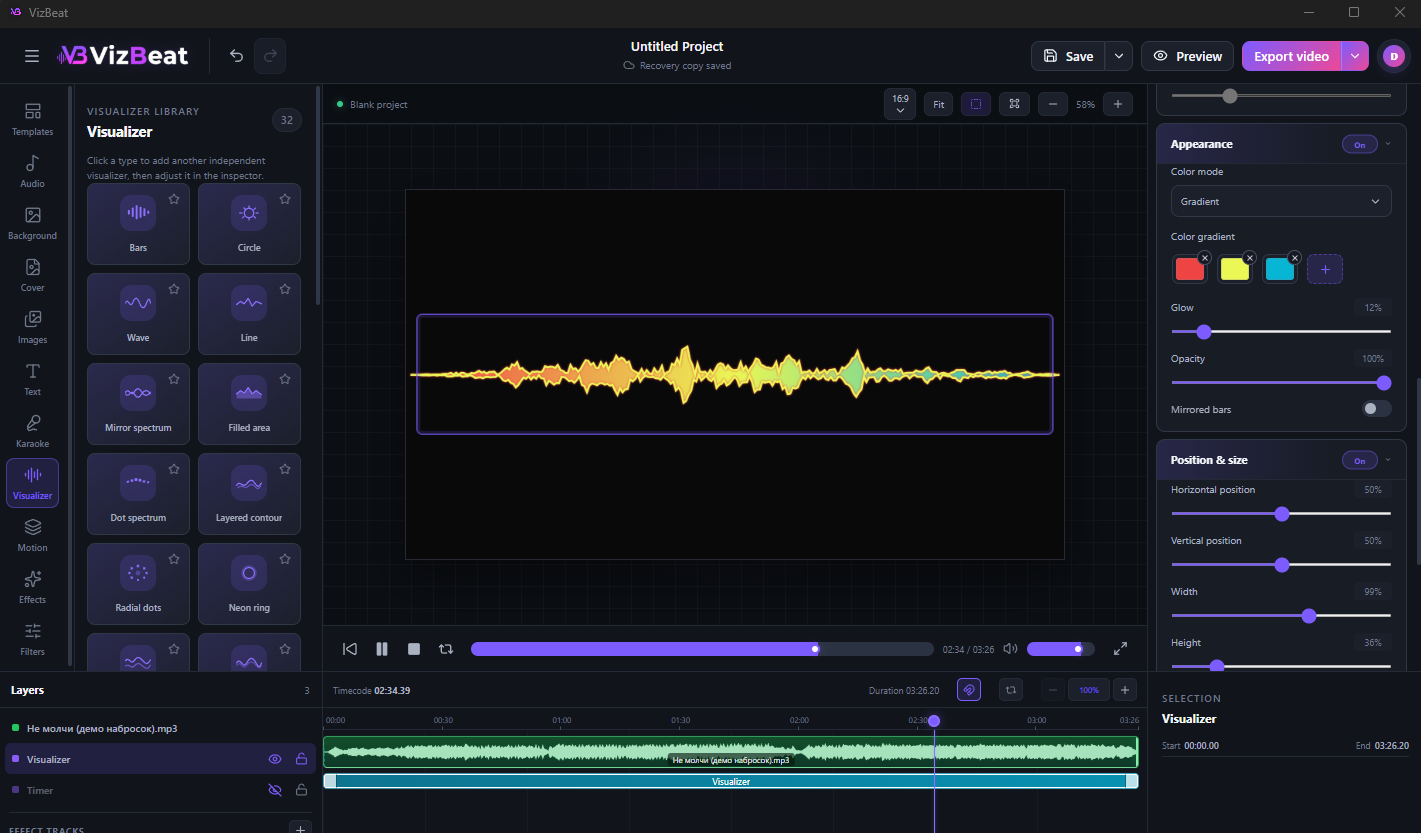
Choose a visualizer, then adjust sensitivity, attack and smoothing. Start with moderate values and tune while the track is playing.
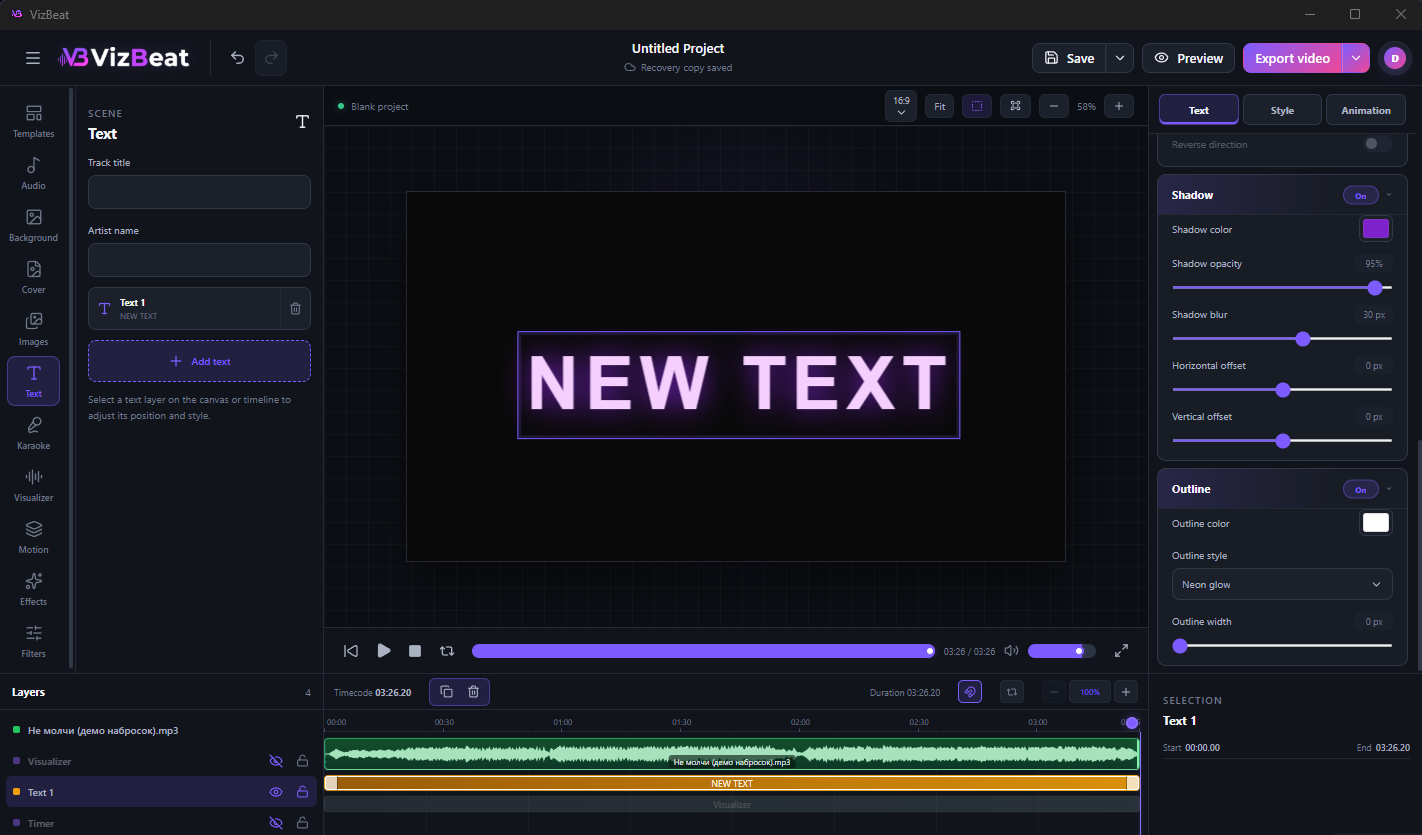
Use Text for titles and credits. Use Karaoke for lyric blocks whose words need to fill in time with the vocal.
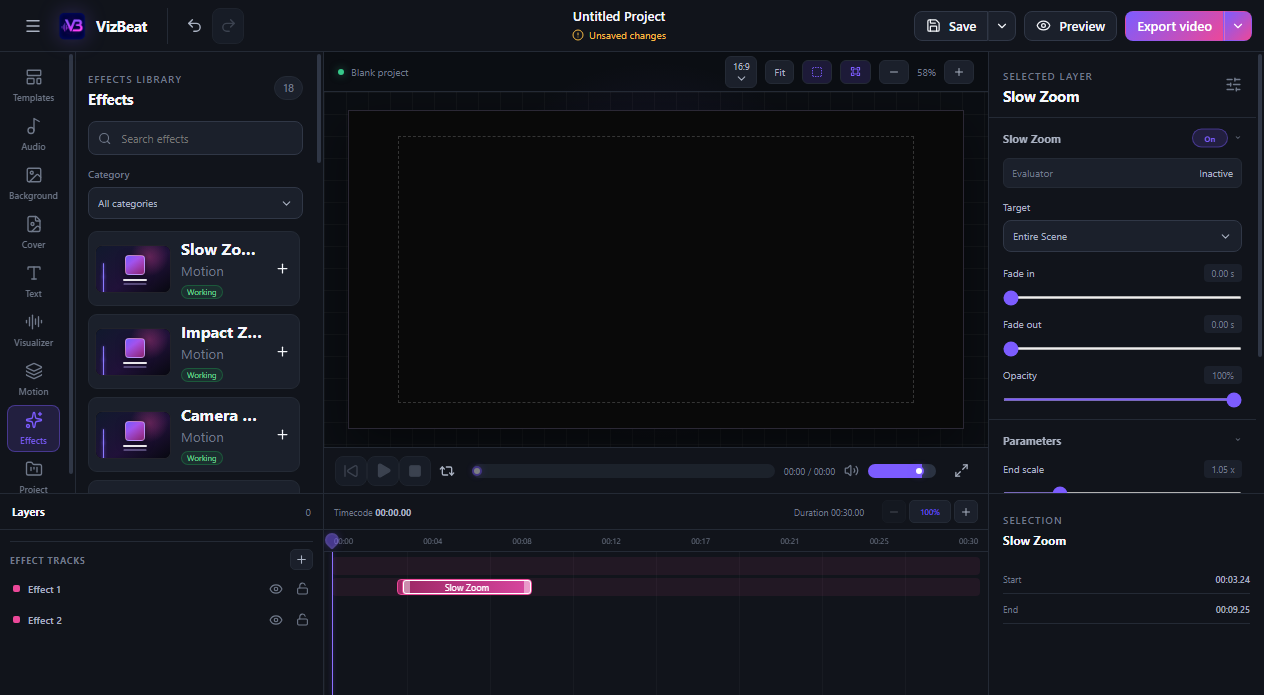
Add motion, effects or filters only where the track needs them. Every new fragment can be trimmed and moved on the timeline.
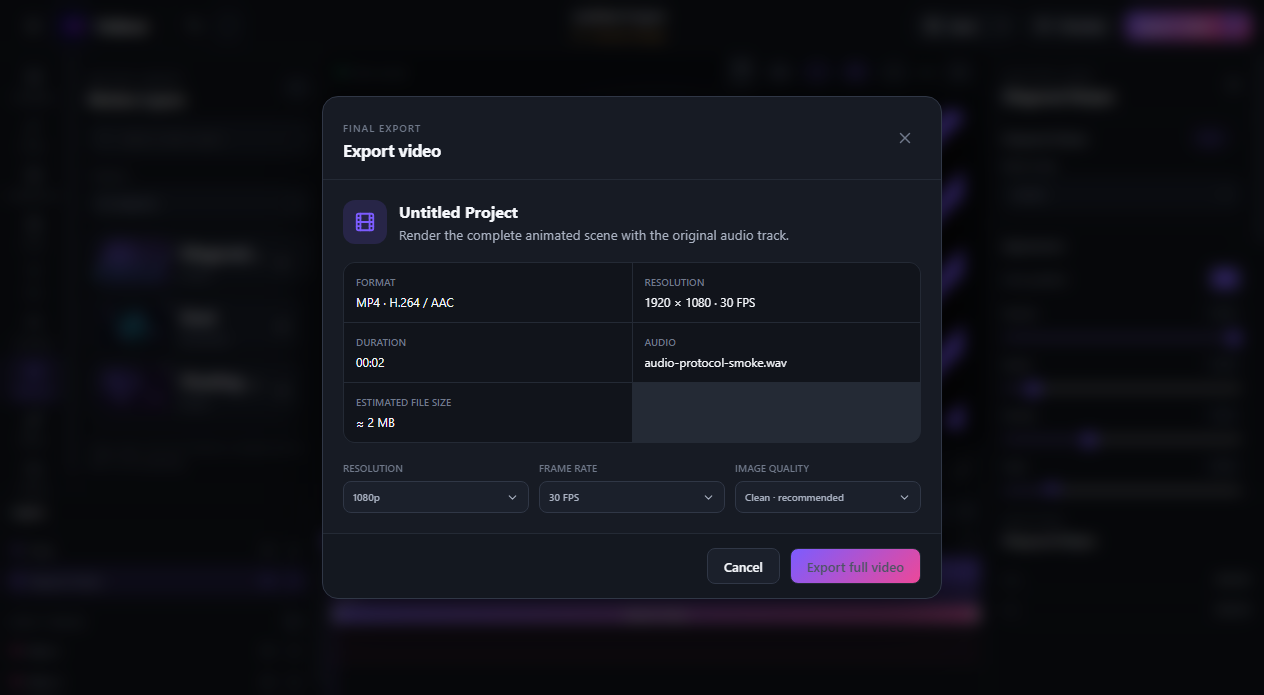
Open Preview to check the complete scene, then choose aspect ratio, resolution, frame rate and quality in Export video.
Save the project before replacing or moving source media.
Clear names make complex timelines much easier to navigate.
Check short moments while building instead of waiting until the end.
The support section covers missing media, project recovery, accounts and export problems.